



To update the stock availability and prices of your products on Kaufland, the offers must first be available and registered in bindCommerce.
The Kaufland integration allows bindCommerce to stay fully aligned with the offers already available on the marketplace. The Offer Import connector is used to download the list of active listings directly from the seller account into the platform. This is a "direct" connector and does not require the prior creation of an import configuration.
Creating the connector
To create the connector, go to the following menu in bindCommerce: Processes >> Connectors.
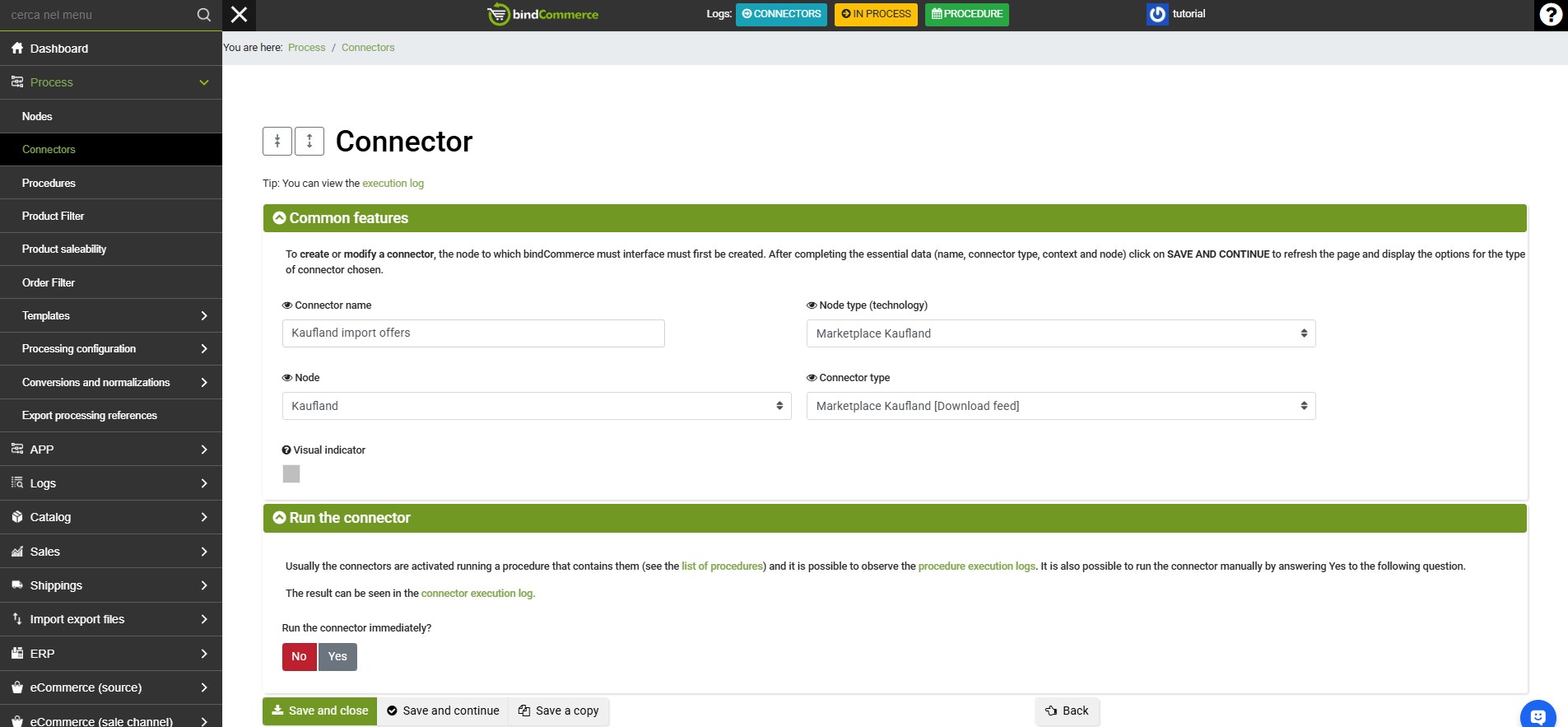
Click the Add button to create a new connector and complete the fields as follows:
- Connector name: enter a descriptive name (e.g. Kaufland: offer download).
- Node type (technology): select Marketplace Kaufland.
- Node: select the Kaufland node associated with your account (created previously).
- Connector type: select Marketplace Kaufland [Product import].
This connector does not require any associated configuration.
Click SAVE AND CLOSE.
To start the process, you can use the immediate execution icon or include the connector in an automated procedure.
Checking the operation
After execution, you can verify that the operation has completed correctly by:
- Checking the Logs: go to Processes >> Logs to monitor the outcome of the operation and check that there are no communication errors with the Kaufland APIs.
- Viewing the Offers: go to Marketplace >> Kaufland >> Products to review the downloaded products, their SKUs and the status of the offers.
Automating the process
To keep the data continuously aligned, it is recommended to automate the process:
- Create a dedicated procedure from the menu Processes >> Procedures.
- Add the offer download connector to the procedure, placing it before any connector used to update stock and prices on Kaufland.
- Configure a recurring schedule to fully automate the offer import process.