



To start downloading orders from Temu into bindCommerce, the first essential step is to create a specific import configuration, defining the criteria and filters required for data transfer. Once imported into bindCommerce, orders can be routed to external ERP systems or other connected marketplaces, or used exclusively to update warehouse stock levels through inventory deduction.
To download orders from Temu into bindCommerce, it is necessary to create both a configuration and the related connector.
Let’s look at the steps required to download orders.
Order import configuration
The order import configuration can be accessed from the menu Marketplace >> Temu >> Order Import
Then click the Add button located at the top left.
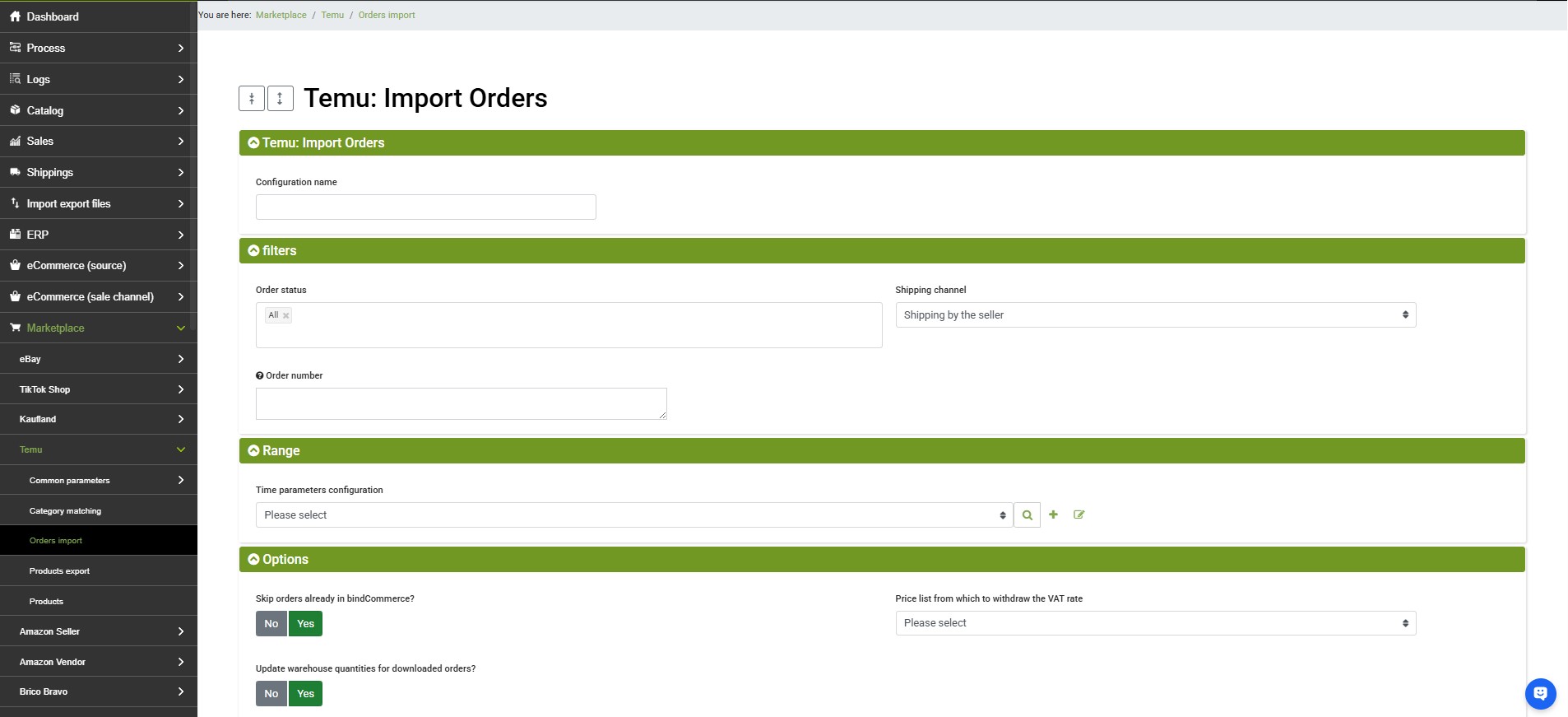
After creating the new configuration and assigning the desired name, simply click SAVE AND CONTINUE to access the following fields.
- Order status: Allows you to select which orders to retrieve from Temu based on their current marketplace status. In the example, it is set to UnShipping (orders not yet shipped).
- Shipping channel: Defines how logistics should be managed. In the example, Seller Fulfilled Shipping is selected, meaning the integration will manage orders shipped directly by the merchant (Merchant Fulfilled).
- Order number: A text field (textarea) that allows you to force the import of specific order numbers by entering them manually, usually used for testing or targeted recovery operations.
- Time parameter configuration: Defines the time interval within which the system should search for new orders or updates (to create a new time parameter click the + icon). In the example, it is set to Modified in the last 12 hours, meaning bindCommerce will only search for orders updated within the last 12 hours.
- Skip orders already present in bindCommerce?: If set to Yes, the system will avoid updating orders that have already been imported into the bindCommerce database.
- Price list from which to retrieve the VAT rate: A dropdown menu that allows you to select which price list should be used to determine the correct VAT rate to apply to order lines during import.
Once the configuration is complete, click on SAVE AND CLOSE.
Connector for order import
After creating the order import configuration following the instructions provided earlier in this article, you can proceed with creating the connector to perform the download.
To create the connector, go to the menu Processes >> Connectors
and click on Add:
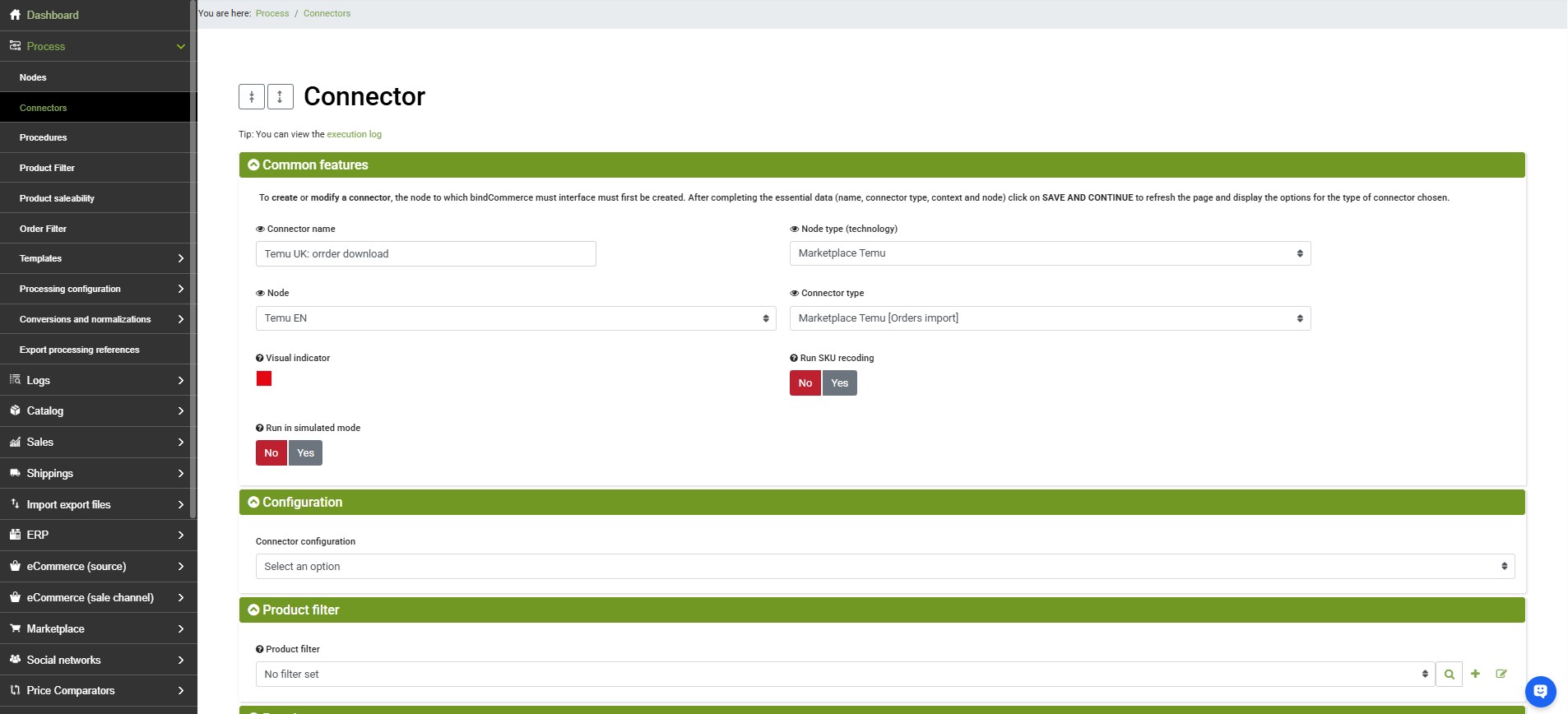
Fill in the available fields according to the following instructions:
- Connector name: enter a name (for example: Temu - Order Download)
- Node type (technology): select Temu Marketplace
- Node: select the previously created Temu node
- Connector type: select Temu Marketplace [Order Import]
- Perform SKU remapping: optionally select Yes if the product SKUs on Temu differ from those in bindCommerce
- Connector configuration: select the previously created order import configuration
- Product filter: optionally select a filter for the order lines to be imported
- Run connector immediately?: optionally select Yes to execute the connector immediately after saving.
Once completed, click on SAVE AND CLOSE.
The connector can be executed manually from the connector list by clicking the related play button. It is recommended to include the connector in a procedure for scheduled or timed execution.
You will then be able to view the imported orders from the menu: Sales >> Sales Documents.
Thank you for rating this article.