



The first step required to correctly install the Temu node is to grant permissions to the bindCommerce app and generate an API key within the store.
Go to Temu in Apps & Services > App Store > search for bindCommerce (using the search bar in the top left corner) > Authorize.
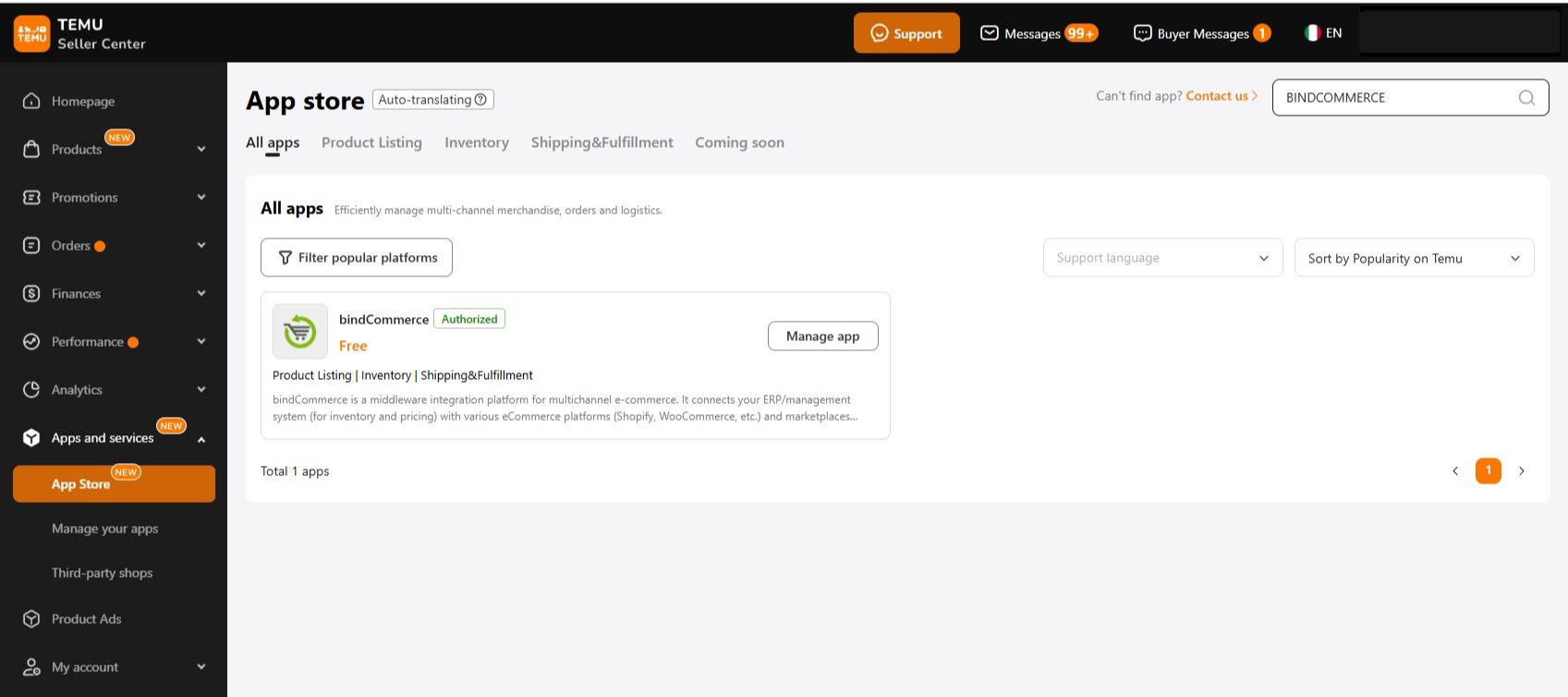
After clicking on Authorize, a permissions management window will open.
Proceed as follows:
-
Check the boxes related to the required permissions to allow data exchange.
-
Select the responsibility statement: “I request Temu to provide bindCommerce access to my Seller Partner account and related data. I am responsible for all actions performed by the application.”
-
Click the Submit button.
Once the request has been submitted, the system will automatically generate an Access Token. Save the generated access token, as it will need to be entered into the Temu node in bindCommerce.
To create a Temu node, select from the bindCommerce menu:
Processes >> Nodes
Click on Add to create a new node and fill in the following fields:
- Technology: Temu Marketplace
- Name: enter a name for this node that helps identify its function (example: Temu UK)
- Key: enter the API key previously generated on Temu (available in Apps & Services > App Store > bindCommerce > View access information)
- Secret: leave this field empty.
- Shop / Merchant ID: leave this field empty.
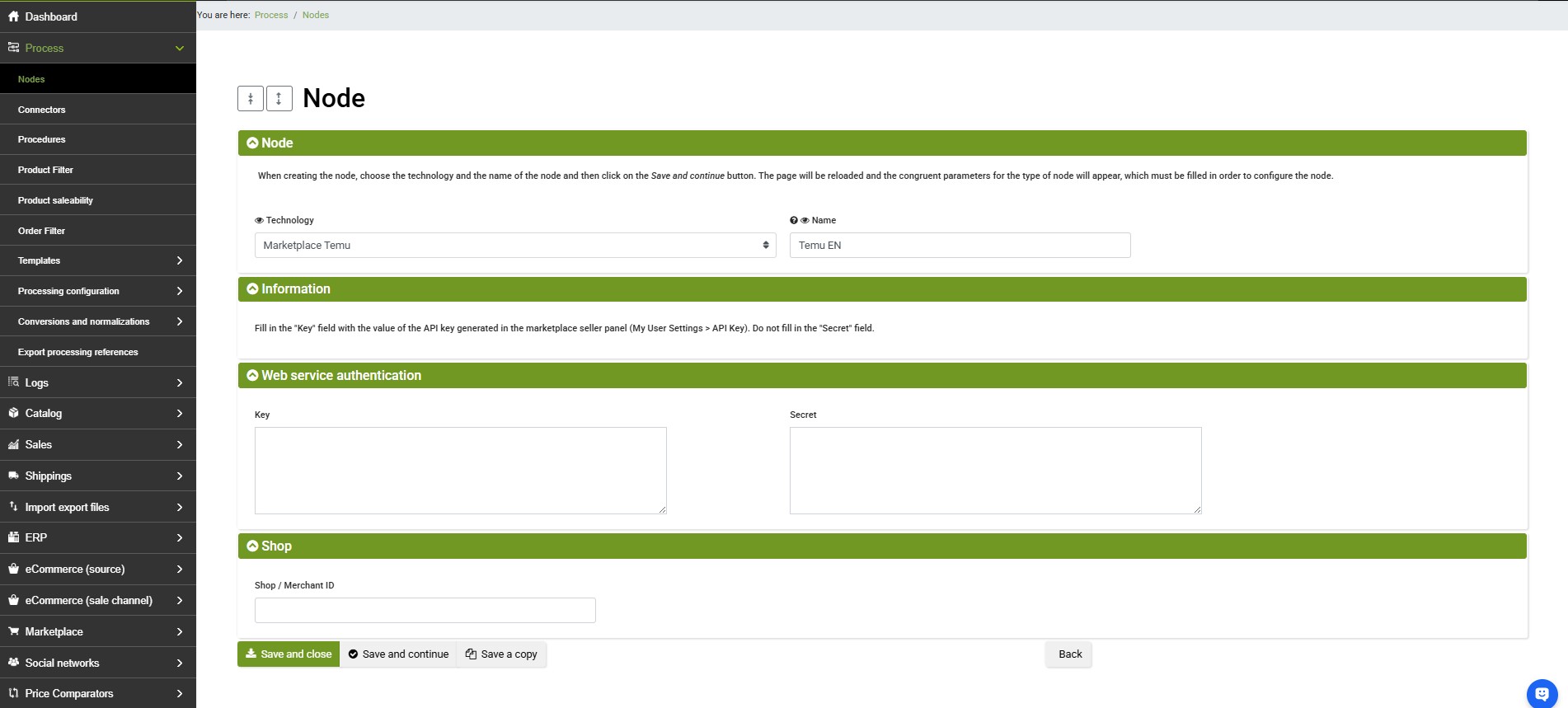
Finally, click on Save and Close.
Thank you for rating this article.