



Before publishing products and their related offers on TikTok Shop, you first need to map the product categories available in bindCommerce to the corresponding TikTok Marketplace categories.
You can view the list of categories available on TikTok Shop directly from the bindCommerce interface, with the added advantage of being able to apply filters while browsing. The list of marketplace categories is available from the following menu:
Marketplace >> TikTok Shop >> Common Parameters >> Categories
To ensure correct publishing, each product category that you want to publish must be mapped to a TikTok category.
To map bindCommerce categories to the corresponding destination categories, go to the following menu:
Marketplace >> TikTok Shop >> Category Mapping
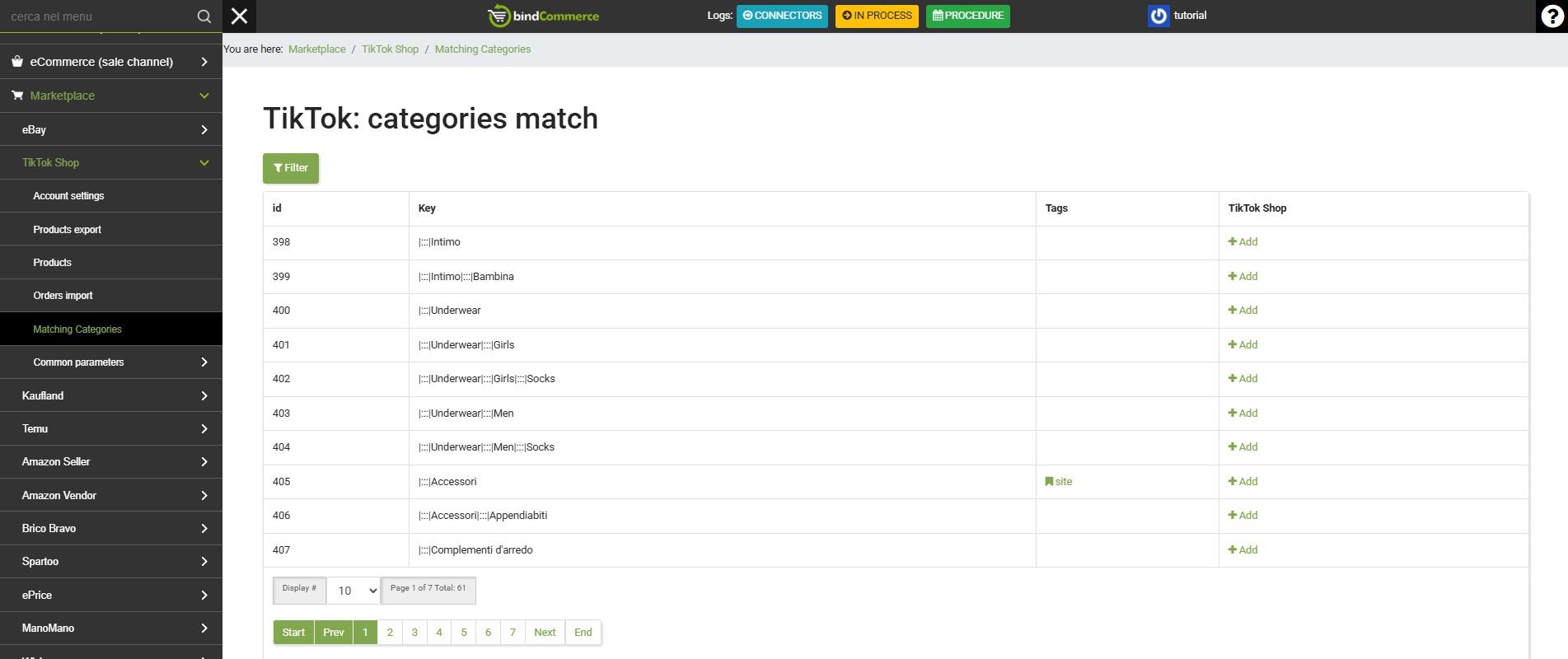
Once you have identified the category for which you need to create a mapping, click on Add in the TikTok Shop column.
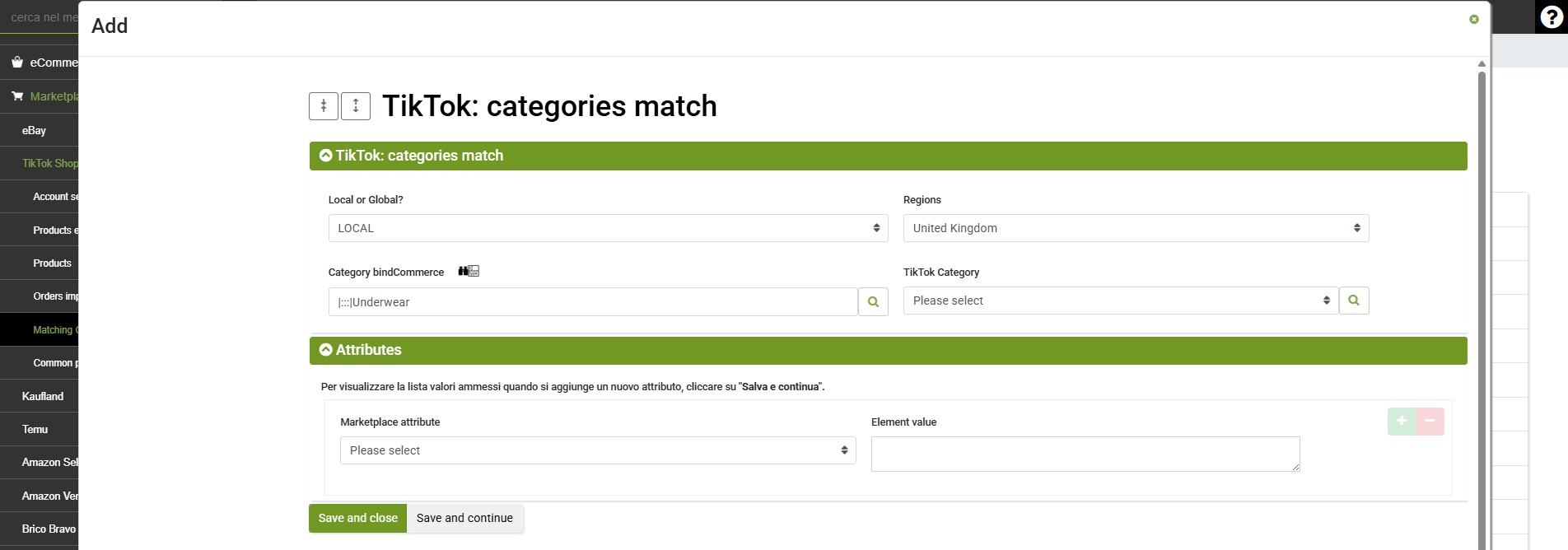
Complete the fields in the following sections:
- Local or Global?: select the LOCAL or GLOBAL market from the drop-down menu
- Market: if you select LOCAL, choose the relevant market in this field, for example Italy
- bindCommerce Category: this field should already be pre-filled, but you can use the magnifying glass to change it
- TikTok Category: select the TikTok category to be mapped. For a more detailed search, click on the magnifying glass
Click on SAVE AND CONTINUE to refresh the information on the page and continue completing the following fields:
- Marketplace Attribute: you can provide additional attributes from those available in the drop-down menu. Attributes may be mandatory (required) and/or used to generate variants (variant), such as colour.
If the selected attribute can only be populated using a predefined list of values, the permitted values will be displayed.
For example, in the screenshot attached to this article, the "Confirm Any Regulatory Marking Or Label" attribute is mandatory and only accepts "1000059" (to indicate No) or "1000058" (to indicate Yes). - Element Value: enter the value for the selected attribute.
If necessary, click on the green + button to add additional attributes.
If you have finished the configuration, click on SAVE AND CLOSE.
Return to the category list and repeat the same procedure for all bindCommerce product categories that you want to publish on the Marketplace.
To view, edit or delete an existing mapping, click on (n) Details next to the + Add button.
Thank you for rating this article.