



To create products in TikTok Shop, follow the steps described in this article.
Creating product listings on the marketplace is the first required step before you can link your offer to them, including the relevant price, available quantity and shipping method.
The connector used to create products on the marketplace requires a Product Creation configuration, as described below.
Product creation configuration
The configuration can be created from the following menu:
Marketplace >> TikTok Shop >> Products Export
Click on ADD to begin.
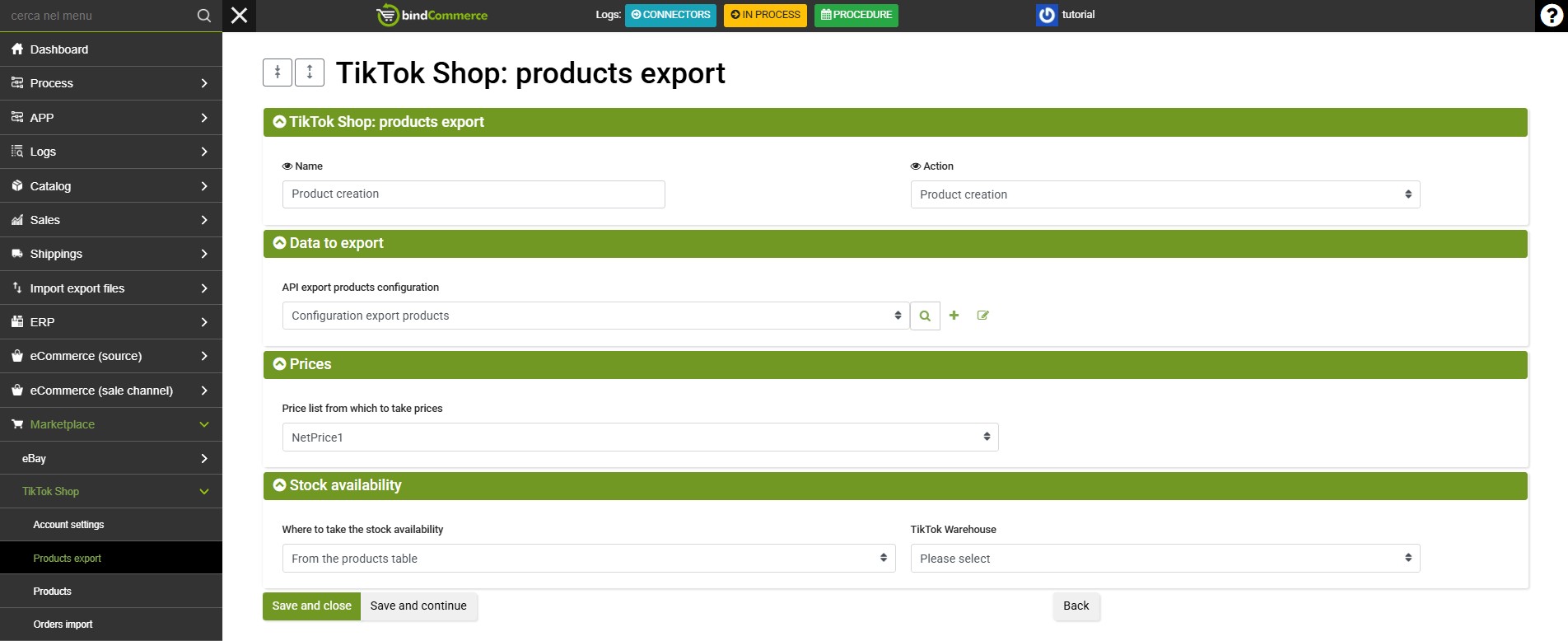
Complete the following fields:
- Name: enter a name for the configuration
- Action: select Product Creation
- Product export API configuration: select an existing configuration from the drop-down menu or create a new one by clicking the green + symbol. You can consult the dedicated guide here.
- Price list used to retrieve prices: select the price list you want to publish on TikTok Shop
- Where to retrieve warehouse stock from: select In the products table or any additional warehouses
- TikTok Warehouse: select the destination TikTok warehouse. If it is not available, you need to re-import your TikTok Shop account settings.
Click on SAVE to complete this configuration.
Connector for product creation
To create the connector for exporting products to TikTok Shop, go to the following menu:
Processes >> Connectors
Click on ADD to begin.
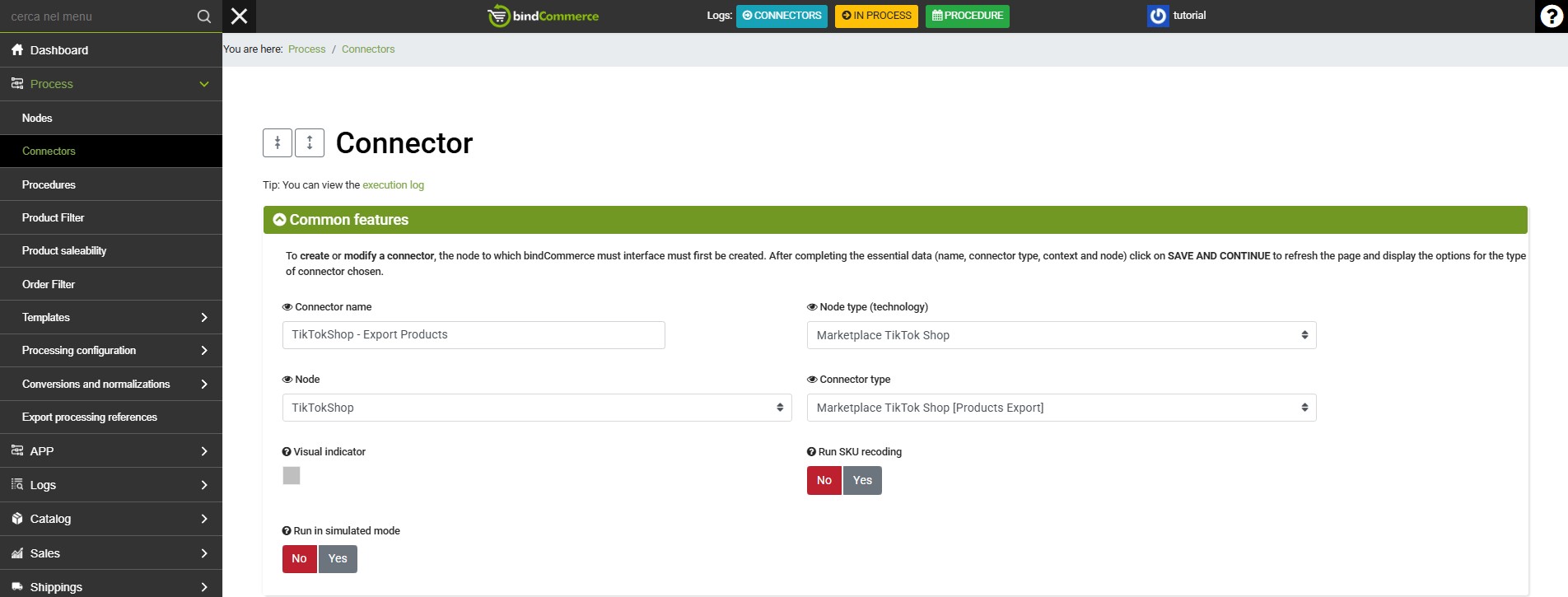
Complete the required fields as follows:
- Connector name: enter a name of your choice or one that clearly identifies the connector's function
- Node type (technology): Marketplace TikTok Shop
- Node: select the TikTok Shop node
- Connector type: Marketplace TikTok Shop [Export Products]
Click on SAVE AND CONTINUE to display the additional fields and complete them as follows:
- Connector configuration: select the product export configuration created previously
- Product filter: select a product filter to limit the number of products published by the connector. If no filter is selected, all products available in the products table will be published
- Differential approach: select the differential approach to publish only products that have been modified since the connector was last executed
- Connector execution: choose whether the connector should run immediately after clicking Save. Otherwise, click the relevant "play" button in the connectors list
Click on SAVE AND CLOSE to complete the connector creation.
After the connector has been executed, you can consult the log both to review the operation results and to download the exported XML file and the submission report, including any error messages or warnings.
The product creation connector can also be included in a procedure scheduled to run daily.
To optimise scheduled product publishing, it is recommended to apply a product filter to the connector configured to retrieve only products created within the last few days, for example within the last 3 days.
Thank you for rating this article.