



To import orders from Kaufland into bindCommerce, you first need to create at least one order import configuration and define the parameters to be used for this operation.
Orders imported into bindCommerce can then be exported, for example to an ERP system or another supported channel, or simply used to deduct the corresponding sold quantities from inventory.
Order import configuration
To create an order import configuration, go to the menu: Marketplace >> Kaufland >> Import orders
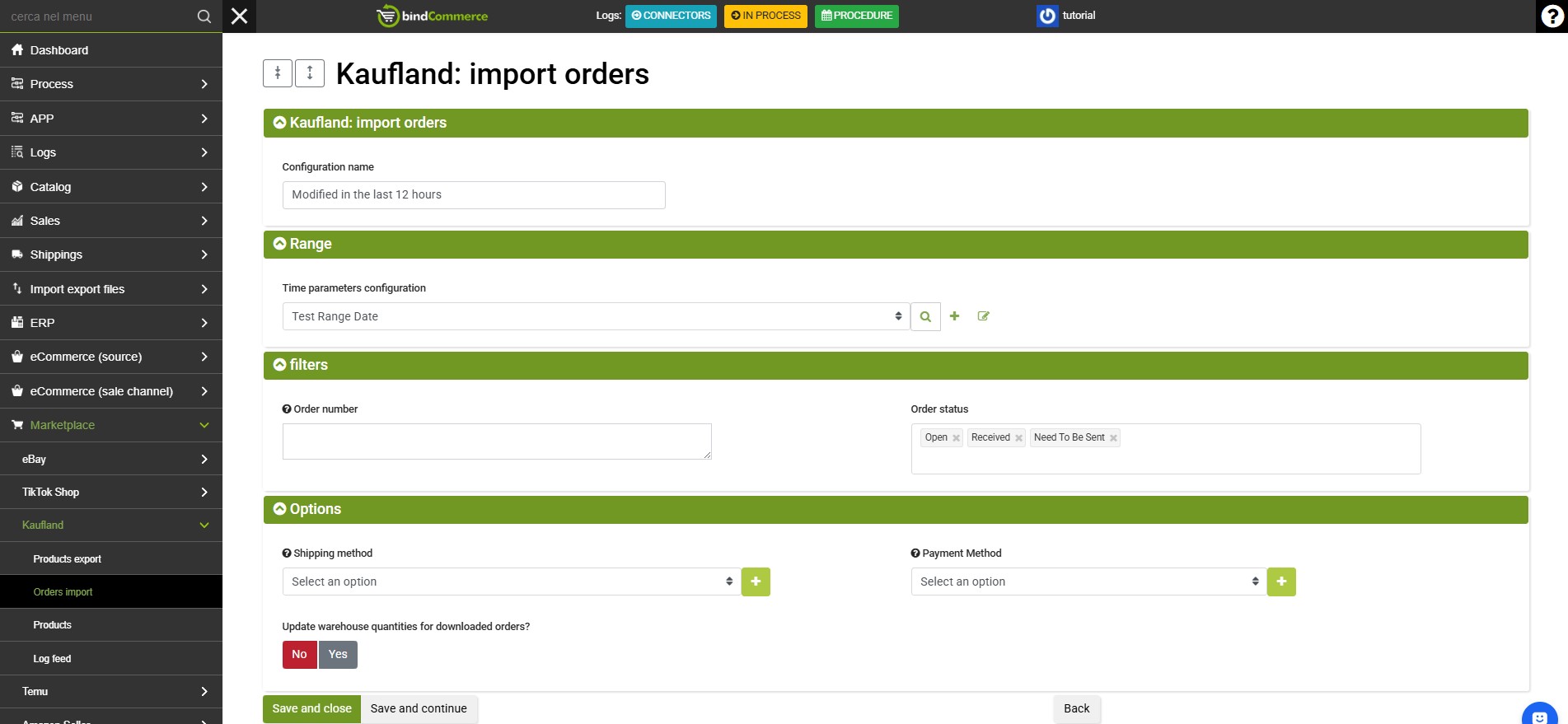
Click ADD to start and complete the configuration fields as follows:
- Configuration name: enter a name of your choice for the configuration.
- Time parameters configuration: select an existing configuration or create a new one by clicking the + button next to the field and complete it as follows:
- Configuration name: enter a name of your choice to identify the time parameters.
- Type: select Orders from the drop-down menu.
- Filter based on dates of: select Creation or Modification.
- Request: select For the last days, For the last hours or Date range. For the most common use case, it is useful to download orders created in the last few days.
- Range: depending on the previous selection, specify how many days or hours should be considered and, if required, a delay (time shift) for the range.
(Click SAVE AND CLOSE to finish, then select the configuration you have just created). - Order number: use only in exceptional cases, when you want to import one or more specific orders only.
- Order status: select the order statuses to be considered.
- Shipping method: select the shipping method to assign to orders imported from Kaufland.
- Payment method: select the payment method to assign to orders imported from Kaufland.
- Update inventory quantities for downloaded orders? select Yes / No.
Order import connector
After creating the order import configuration, you can proceed with creating the connector used to download the orders.
Go to the menu: Processes >> Connectors
Click ADD to start.
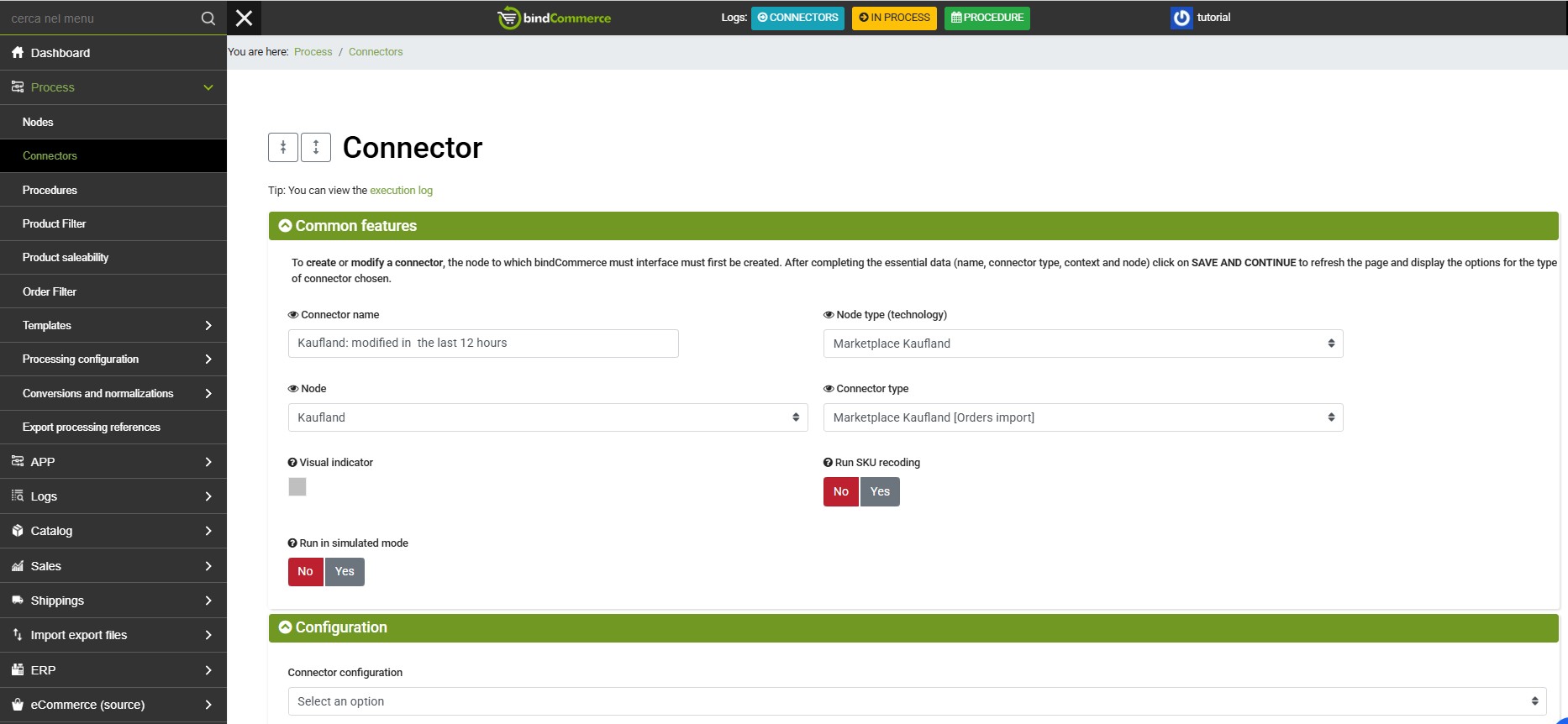
Complete the available fields as follows:
- Connector name: enter a descriptive name for the connector.
- Node type (technology): select Marketplace Kaufland.
- Node: select the Kaufland node created previously.
- Connector type: select Marketplace Kaufland [Order import].
- Perform SKU mapping: optionally select Yes if the product SKUs used on Kaufland differ from those used in bindCommerce.
- Connector configuration: select the order import configuration created previously.
- Run the connector immediately? optionally select Yes to run the connector immediately after saving.
Once all fields have been completed, click SAVE AND CLOSE.
Management and execution
The connector can be run manually from the connector list by clicking the corresponding Play button.
It is recommended to include the connector in a scheduled procedure for automatic timed execution.
You can then view the downloaded orders from the menu: Sales >> Sales documents
Thank you for rating this article.