



Follow the steps described in this article to allow bindCommerce to update data such as tracking code, shipping date and order status on Kaufland.
Important Note: Unlike other marketplaces, the Kaufland order update connector does not need to be linked to an export configuration. You can therefore proceed directly with creating and setting up the connector.
Creating the order update connector
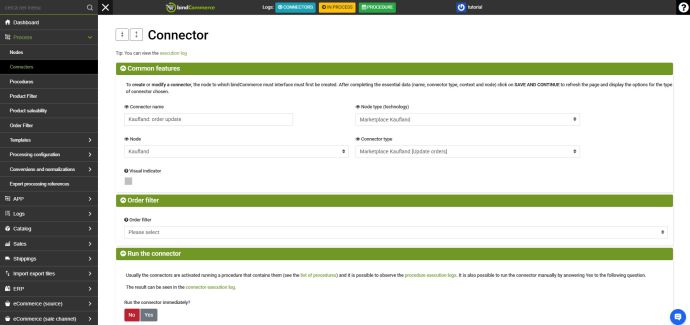
To create the order update connector for Kaufland, go to the menu: Process >> Connectors
Click ADD to start and complete the fields as follows:
- Connector name: enter a name of your choice that clearly identifies the purpose of the connector (e.g. Kaufland - Order update).
- Node type (technology): Marketplace Kaufland
- Node: select the Kaufland node.
- Connector type: Marketplace Kaufland [Order update]
Click SAVE AND CONTINUE to display the next fields and complete the setup:
- Sales document filter: if necessary, select a filter to define and limit which documents should be included in the update.
- Connector execution: choose whether to run the connector immediately after saving or start it manually using the "Play" button in the connector list.
Click SAVE AND CLOSE to complete the creation.
Management and scheduling
After running the connector, you can check the system log to review the operations performed and any error messages or warnings.
Scheduling recommendation: It is recommended to include this connector in an automated procedure scheduled to run regularly, in order to ensure that shipping and tracking information is sent to the marketplace promptly and consistently.
Thank you for rating this article.