



To allow bindCommerce to communicate with TikTok Shop, the first step is to create the relevant node. You can do this from the following menu:
Process >> Nodes
Click on Add and complete the fields as follows:
- Technology: select Marketplace TikTok Shop
- Name: the name you want to assign to the node
Click on SAVE AND CLOSE.
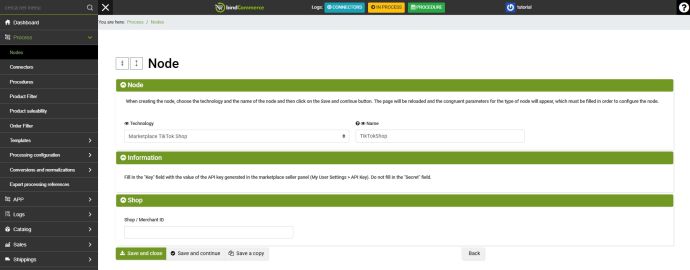
The user does not need to complete any additional fields in the node.
After generating the token on TikTok Shop, if the operation is successful, the Shop / Merchant ID field will be filled in automatically.
We can now proceed with generating the token through the section available from the following menu:
Marketplace >> TikTok Shop >> Account Settings
On the page, click on Add and complete the fields as follows:
- Node: select the name of the TikTok Shop node created by following the instructions above;
- Market: select the market in which you want to operate, for example Italy.
Click on SAVE AND CONTINUE.
Once the page has loaded, click on GENERATE TOKEN to be redirected to TikTok Shop. After approving the required permissions, you will be redirected back to bindCommerce and the Token generated? field will display a check mark to confirm that the operation was successful.
As mentioned above, once the operation is completed successfully, the TikTok Shop identifier will also be added to the node.
Now that the node is configured, you can download your TikTok account settings into bindCommerce using the connector for importing TikTok Shop settings.
Thank you for rating this article.